Last updated: August 11, 2026
- – NIST’s current guidance supports longer, unique passwords over forced complexity: https://pages.nist.gov/800-63-3/sp800-63b.html What Actually Makes a Password Strong Short, reused, or personal?
- In how create strong passwords store them safely, that is the real problem to solve.
- They also depend heavily on your browser account security, your device security, and how carefully you handle sync.
- That is the first thing to fix.
Quick Answer: To how create strong passwords store them safely, use a password manager, make every important password long and unique, and turn on passkeys or two-factor authentication wherever you can. Still reusing passwords? That is the first thing to fix.
I’m writing for the person with a dozen accounts to protect, zero interest in memorizing random strings, and a genuine fear of getting locked out or hacked. In how create strong passwords store them safely, that is the real problem to solve. Strong passwords matter; storing them badly can wipe out the benefit. Ugly, but true.
Key facts
– Use one password manager for daily password storage.
– Make every important password unique.
– Prefer a random manager-generated password for sensitive accounts.
– Turn on passkeys or two-factor authentication wherever available.
– Protect your email first, because it resets other accounts.
– NIST’s current guidance supports longer, unique passwords over forced complexity: https://pages.nist.gov/800-63-3/sp800-63b.html
What Actually Makes a Password Strong
Short, reused, or personal? That password is weak. Long, random, and tied to just one account? That is strong enough for almost any normal person’s needs.
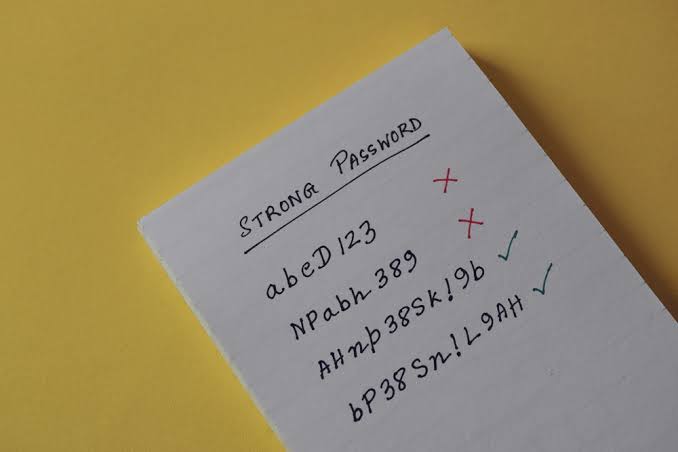
The common mistake is treating cleverness like strength. It is not. P@ssw0rd! looks busy and still falls apart because attackers expect those substitutions. correct-horse-battery-staple, by contrast, usually does better; length beats pattern. Random beats memorable. Unique beats both.
Here’s the rule I’d use:
- For every account, make the password long.
- Make it different from every other password you use.
- Do not build it from your name, pet, sports team, birthday, or favorite quote.
- Do not “slightly change” an old password by adding a number at the end.
A practical target is simple: ask a password manager to generate a random password for important accounts, then let the manager handle the remembering. NIST’s Digital Identity Guidelines are a good reference point for modern password thinking: https://pages.nist.gov/800-63-3/sp800-63b.html
What generic advice misses is simple: people are told to make passwords they can remember, as though memory were the goal. It is not. Security plus recovery is the goal. Can’t recall it? Fine — when it lives safely in a manager, that is not a flaw.
- Pick one password manager you trust enough to use daily.
- Create one strong master password you can remember without writing it in an obvious place.
- Turn on the manager’s built-in password generator.
- Change your most important accounts first: email, banking, cloud storage, Apple or Google, and social media.
- Replace reused passwords one account at a time.
- Store recovery codes in the manager or in a separate safe place, not in a notes app with no lock.
Quick check: if you describe your current password as “something I can remember,” you probably need a manager-generated password for that account.
How to Create a Password You Can Live With
For a master account, or any site that forces you to create one yourself, a long passphrase you can type accurately is usually the cleanest route. But when the account is sensitive enough that you will rarely type it, pull a random string from a password manager instead.
A good passphrase is not a famous quote. It is a private, odd mix of words that only makes sense to you, and even then only barely. Think four or five unrelated words plus punctuation or separators. The point is to add length without making the password predictable.
Need to make one by hand? Do this:
- Choose four to six unrelated words.
- Avoid words tied to you personally.
- Put them in an order that is not a saying, lyric, or movie line.
- Add a separator or two that you can reproduce easily.
- Test it by typing it twice from memory.
- If you hesitate, simplify the structure instead of shortening it.
- Save it in your password manager right away.
For an account that could expose money, identity, or your email inbox, I would not lean on a hand-made pattern for the long haul. Human-made passwords are still easier to guess than randomly generated ones, especially if an attacker knows anything about you from breached data or social media. That math stops working fast.
The standard advice goes wrong when it tells people to “make it complex.” Complexity is not the same thing as strength. A longer passphrase can be stronger and easier to use than a shorter jumble of symbols. The real test is whether the password is unique and hard to predict, not whether it looks ugly.
Quick check: if your password contains a name, date, or repeated pattern, rewrite it.
Password Managers: The Safest Practical Storage Method
Have more than a handful of accounts? A password manager is the best practical default for storing them. With one, you can stop trying to remember every login while focusing on the single password that opens the vault.
A good password manager does three jobs well: it generates strong passwords, stores them encrypted, and fills them in when you need them. Real options include 1Password, Bitwarden, Dashlane, and Apple Passwords for people already inside Apple’s ecosystem. I’d pick based on how well it fits your devices and how comfortable you are with its recovery options, not on hype.
There is a trade-off here. A password manager creates a single high-value target. Scary? Sure. But the alternative is usually worse: reused passwords, passwords saved in browsers without much thought, or notes files that are too easy to copy.
Use the manager this way:
- Install it only from the official source.
- Create a long master password that you have not used anywhere else.
- Turn on two-factor authentication for the manager itself if it supports it.
- Enable the password generator and autofill.
- Import old saved passwords only after checking for duplicates.
- Change your email password first, then financial accounts, then everything else.
- Store recovery codes and backup methods inside the manager or in a separate offline place.
Sharing a computer or worried about malware? A password manager still helps, but you need to be stricter about locking the device, keeping it updated, and logging out of the vault when you are done. If other people can physically reach the device, browser-saved passwords are the wrong call.
For a broader security baseline, the U.S. Cybersecurity and Infrastructure Security Agency has practical guidance on passwords and authentication: https://www.cisa.gov/topics/cybersecurity-best-practices/passwords-and-authentication
Quick check: if you have more than three important logins, a password manager is almost certainly safer than trying to remember them yourself.
When to Use Passkeys, Two-Factor Authentication, or Both
Passkeys available? Use them. Two-factor authentication available? Enable it. Both? Even better.
Passkeys are not passwords. They use cryptographic keys tied to your device or account, which can make phishing much harder. That matters because even a strong password can be stolen if you type it into a fake login page. Two-factor authentication adds another barrier, usually a code or a prompt on a trusted device.
Use this logic:
- If the service supports passkeys and you are comfortable managing them, prefer passkeys.
- If the service supports two-factor authentication, enable it even when you also use a strong password.
- If the service supports security keys such as YubiKey, that is a strong option for your most sensitive accounts.
- If the service only supports a password, use a unique one from a manager and do not share it across sites.
There is a catch. SMS codes are better than nothing, but they are weaker than authentication apps or hardware security keys. If you get a choice, I’d take an authenticator app or a hardware key for critical accounts.
Here the usual “make your password stronger” advice can be flat-out wrong. For your email account, a passkey or strong two-factor setup often helps more than making the password ever longer. Email is the key to password resets elsewhere, so protect it first. The lock is only as good as the door.
Quick check: if your email, banking, or cloud account still has only a password, it is under-protected.
If You’re Storing Passwords in a Browser or Notes App
Chrome, Safari, Firefox, or a notes app as your main password storage can be fine in low-risk situations, but it is not my first choice for important accounts. The answer changes if you need better control, better recovery, or shared-device safety.
Browser password managers are convenient. That is their strength and their weakness. Convenience tends to keep people from moving to better habits. They also depend heavily on your browser account security, your device security, and how carefully you handle sync.
A notes app is worse unless the note itself is strongly encrypted and locked behind a password or biometric protection. Plain text notes with passwords are a gift to anyone who gets access to the device.
Starting from a browser vault and want to improve without chaos? The safest route is to move step by step and, if your situation is unusual, consult a cybersecurity professional or IT administrator before changing how you store passwords; CISA’s password and authentication guidance is a useful starting point: https://www.cisa.gov/topics/cybersecurity-best-practices/passwords-and-authentication
- Export your saved passwords from the browser only if the export process is secure and you trust the device.
- Import them into a password manager.
- Check for duplicates and weak passwords.
- Change the password for your email account first.
- Turn on two-factor authentication for the browser account and the password manager.
- Delete or disable browser-saved passwords after migration if you do not need them.
- Keep the browser updated and protected by a device passcode or full-disk encryption.
If you insist on staying with browser storage for now, at least protect the device with a strong login, keep the OS updated, and make the browser account itself hard to take over. Still, I’d treat that as temporary, not the finish line, and I would consult a cybersecurity professional if you manage sensitive data; CISA’s guidance is a good source to review first: https://www.cisa.gov/topics/cybersecurity-best-practices/passwords-and-authentication
Quick check: if your passwords live in a notes app with no lock, move them today.
The Edge Cases Where Normal Advice Breaks Down
Unusual situation? Normal password advice can point you in the wrong direction. These are the cases I would handle differently.
-
You share a device with family or coworkers.
What changes: physical access matters as much as the password.
What to do instead: use separate user accounts on the device, log out of the password manager when done, and avoid saving passwords in the browser on a shared profile. -
You are managing passwords for a parent, partner, or child.
What changes: recovery and access are the real problem.
What to do instead: use a password manager with secure sharing, document recovery methods, and keep ownership clear so one person’s emergency does not become everyone’s lockout. If the situation is sensitive, consult a cybersecurity professional and review CISA’s passwords and authentication guidance first: https://www.cisa.gov/topics/cybersecurity-best-practices/passwords-and-authentication -
You fear forgetting a master password.
What changes: recovery planning matters more than extra complexity.
What to do instead: write the master password in a sealed offline backup if that fits your risk tolerance, or use a manager with a recovery process you understand before you need it. -
You keep getting locked out because of two-factor authentication.
What changes: backup codes become critical.
What to do instead: save backup codes offline in two places, and make sure you know how to regain access if your phone is lost or replaced. -
Your job requires password sharing.
What changes: personal sharing habits are the wrong tool.
What to do instead: use a team password manager with role-based access and audit logs rather than sending passwords by chat or email. -
You travel often or cross borders.
What changes: device loss risk goes up.
What to do instead: keep a recovery plan that does not depend on one phone, and use a strong device passcode plus remote wipe where possible.
Quick check: if your problem is access, recovery, or shared use, the “just make it stronger” answer is not enough.
A Simple Setup I Would Trust More Than Most
Want the practical middle ground? This is the setup I’d choose:
Use a password manager. Create one master password that is long and memorable to you. Turn on two-factor authentication for the manager. Generate unique passwords for every important account. Use passkeys where available. Use an authenticator app or security key for critical logins. Keep offline recovery codes in a safe place. Change the email account first if you discover reused passwords anywhere.
Not ready for all of that at once? Start with the accounts that can reset everything else: email and phone carrier accounts, then banking, then cloud storage, then shopping and social accounts. That order matters because a weak email password can make every other password easier to steal or reset.
One honest limitation: no system is effortless. A password manager cuts down the work, but it does not remove the need to protect your phone, your laptop, and your recovery methods. If you are careless with device access, the best password plan can still get dragged down.
Quick check: if you want the safest plan with the least daily effort, this is the path.
FAQ
Should I change my passwords regularly?
Not if they are already unique and strong, unless you have reason to suspect compromise. I’d focus on replacing weak or reused passwords first.
Is it safe to let my browser save passwords?
It can be acceptable for low-risk accounts on a well-protected personal device, but I would not rely on it for email, banking, or anything sensitive.
What is better: a random password or a long passphrase?
For a password you must type often, a long passphrase can be easier to use. For the strongest storage in a manager, a random password is usually better.
What should I protect first if I can only fix three accounts today?
Your primary email, your password manager or vault account, and your banking account.
Are passkeys replacing passwords?
Not everywhere yet. I would use passkeys where available, but I would still keep good password habits for the accounts that have not